
How to turn off conversation view in Microsoft 365?
October 21, 2016
Recent Posts
- Is Your Sales Pipeline Ready for 2027? 7 Things to Check Before Year-End
- AI Is Changing Everything. Is Your Business Ready to Change With It?
- AI and Compliance: How to Embrace AI Without Creating New Risk
- Before 2027: 8 Things Your Business Should Fix Before the Year Ends
- 7 Signs Your Business May Have Outgrown Its Current Systems
Want to make your Microsoft 365 work harder for your business?
and we’ll tailor a solution that’s just right for you.
While working on Microsoft 365, sometimes you feel the need to view your email as conversations and even at a single entity. Well, in this case, this blog will be a great help.
Below are the steps you need to take to turn Off or On the conversation view in Microsoft 365
- Using a web browser, go to Microsoft 365
- Login to the portal using your Microsoft 365 username and password:User: [email protected]
Password: eID Password - On the landing page, click the “Mail” link or select “Mail” from the list that appears when you click the grid icon in the top-left corner.
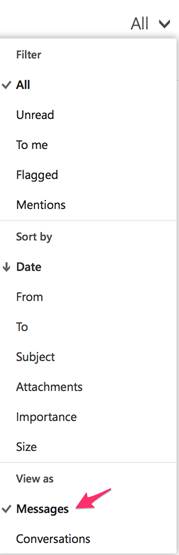
- To turn off the conversation view, click the drop-down arrow next to All in the main Inbox window.
- Click on Messages under “View as.” You can choose how to “Sort by” here also:
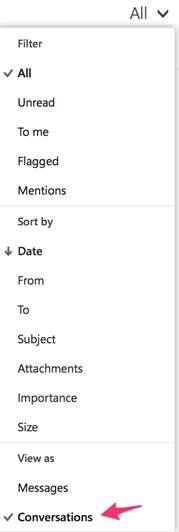
- To re-enable conversation mode, click the drop-down arrow next to All and click Conversations:


 English (UK)
  English (United States)
  English (Ireland)
  English (India)