
How to change the users first page in Odoo community
November 15, 2017
Recent Posts
- From Excel Chaos to Automated Operations: How Power Apps Transformed a Field Service Business
- Power BI vs Excel: Which Reporting Tool Is Right for Your Business?
- Smarter Call Scheduling with Power Automate, SharePoint and Microsoft Teams
- We’re Heading to the Odoo Business Show in Birmingham: Here’s What We Want to Talk About
- Only One in Six UK Businesses Are Using AI. Is Manufacturing Falling Behind?
Want to make your Microsoft 365 work harder for your business?
and we’ll tailor a solution that’s just right for you.
If you are an Odoo community user then you will realize that after login into the Odoo community accounts the very first page you will get is the Messaging app. There is a possibility that you can change the first page just after the login by changing the sequence.
For this, you need to follow these simple steps
Step 1: Enable the developer mode.
Step 2: Go to Setting -> Technical -> User Interface -> Menu Item
Step 3: If you search for Messaging which is the very first page, you will notice that the sequence no. assigned to it is 10.
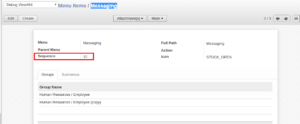
Step 4: Now, search for the menu item that you want to keep on the very first page, in my case I want Accounting to be in the first position.
Step 5: Edit the Accounting menu item and change the sequence to a lower number than messaging menu item.
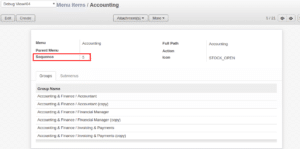
Step 6: Logout and login again. You will notice that accounting is coming in on the very first position.



 English (United States)
  English (UK)
  English (Ireland)
  English (India)