
How to make read-only user in Odoo
December 21, 2016
Recent Posts
- Lean Business: How to Reduce Waste and Build More Efficient Processes
- Scariest Business System Nightmares – and How to Banish Them
- The Connected Compliance Problem
- Mind the Digital Gap: Is Your Business Ready for What Comes Next?
- AI Transformation Is a Business Change Challenge, Not Just a Technology Project
Want to make your Microsoft 365 work harder for your business?
and we’ll tailor a solution that’s just right for you.
I am going to make a user who can have read-only access to the Sales, accounting, and purchase or I can say the user is going to see all the products, contacts, quotations, sales order, vendor invoice, refunds, purchase order etc but not able to create and edit.
Step 1:
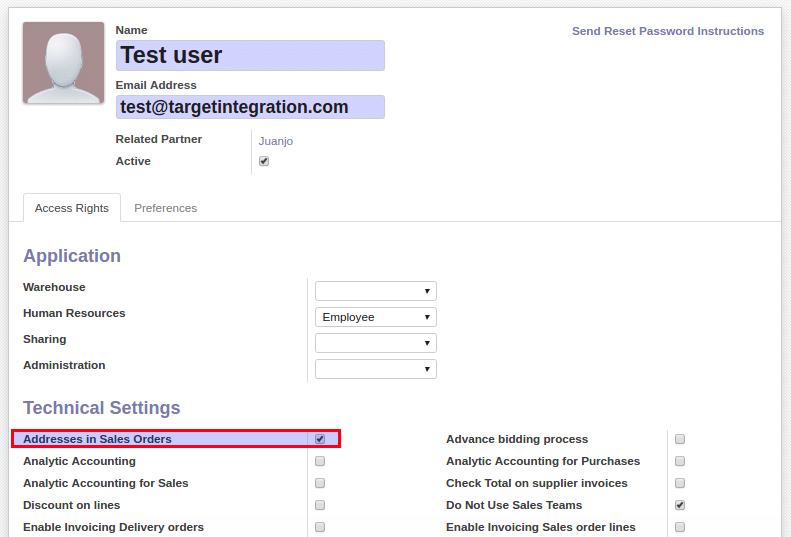
- Create a user and disable contact creation check box.
- And deselect the contact creation checkbox.
- On Technical setting set “Address in Sales Order” right enable.
- Set the password.
- Save the details.
Step 2:
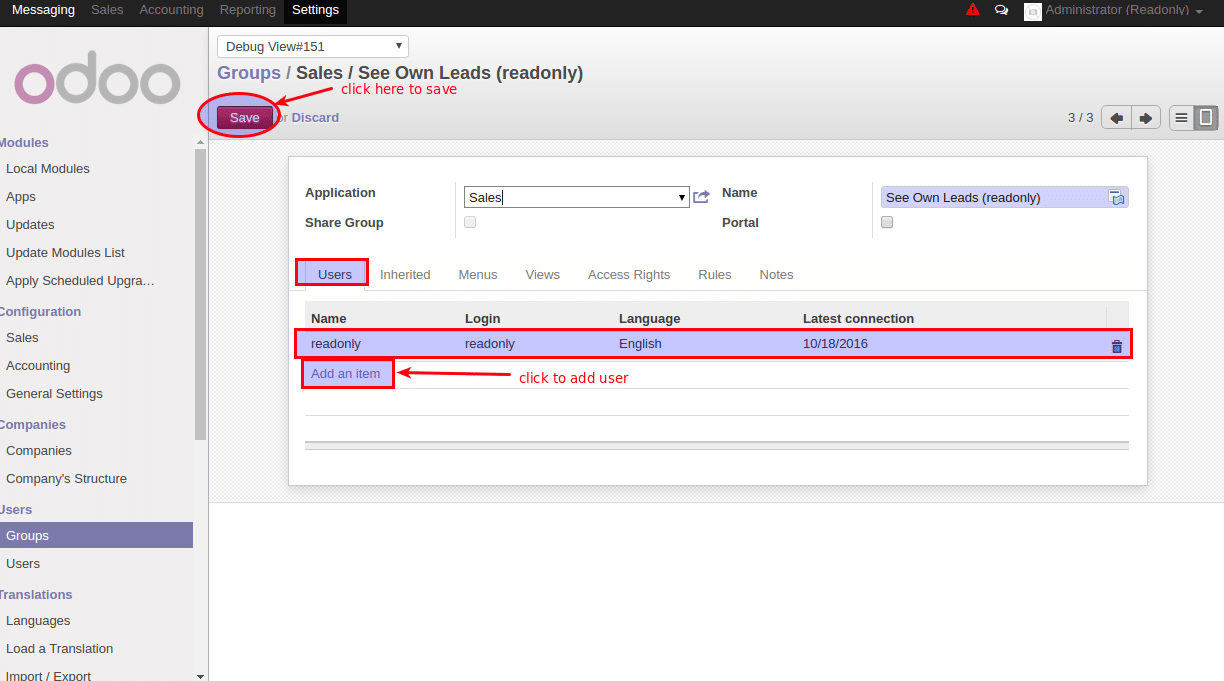
- Go to Setting -> Users -> Groups .
- For Sales read only access search for “See Own Leads” group.
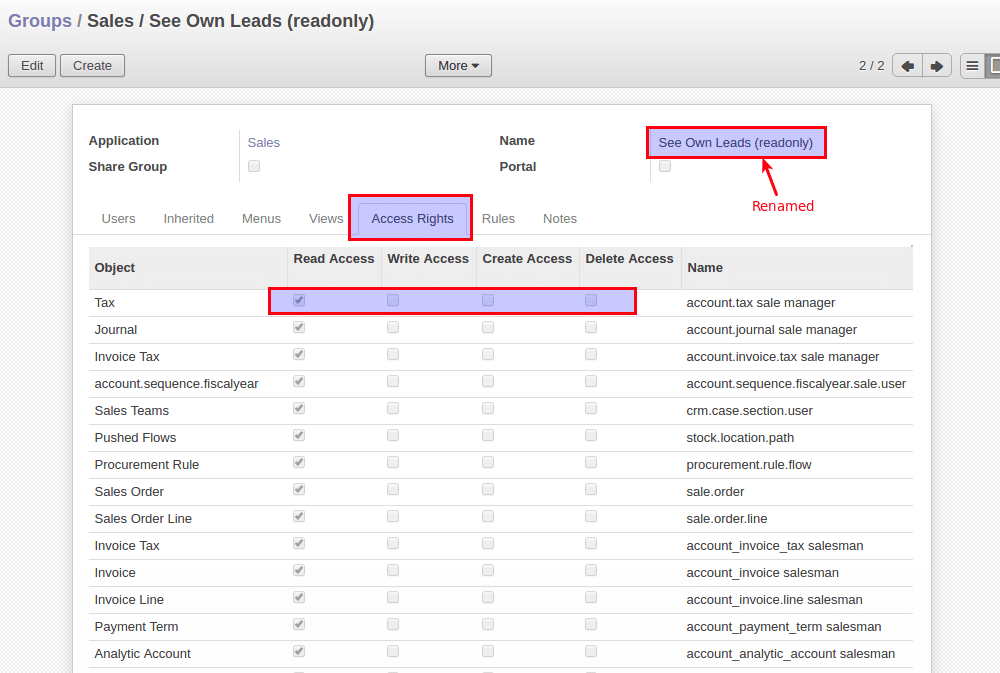
- Copy that group and rename it then removes all the existing users and adds the new user.
- Go to “Access Rights” tab then disable all the access rights accept read only access.
Step 3:
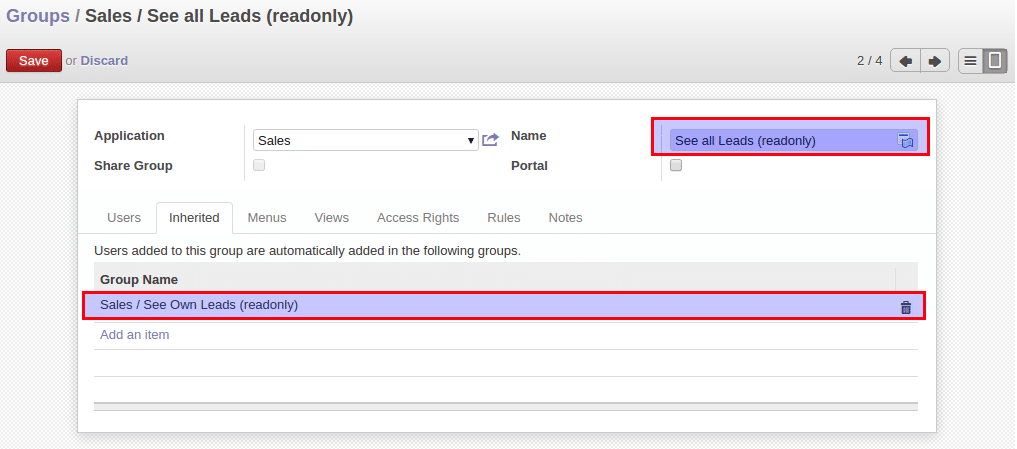
- As the same way go to “See All Leads” and do the same process as mentioned above.
- Goto to “Inherited” tab and remove the “See All Leads” option and add the new(See Own Leads(read only)) group.
Step 4:
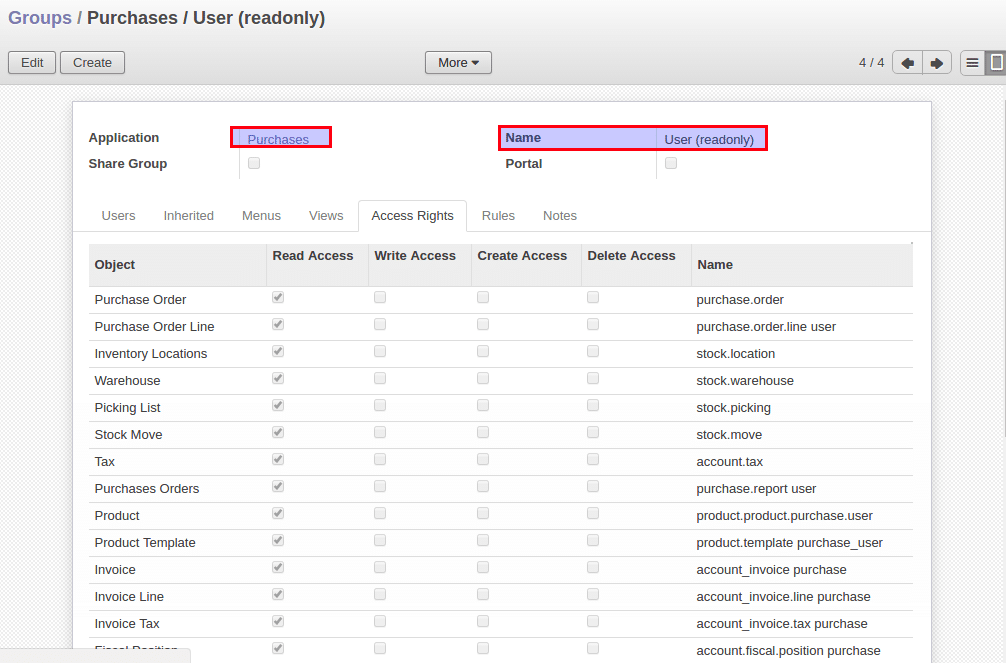
- For purchase access right search for group “user” with the application “Purchases”.
- And now follow the same step as step 1.
Step 5:
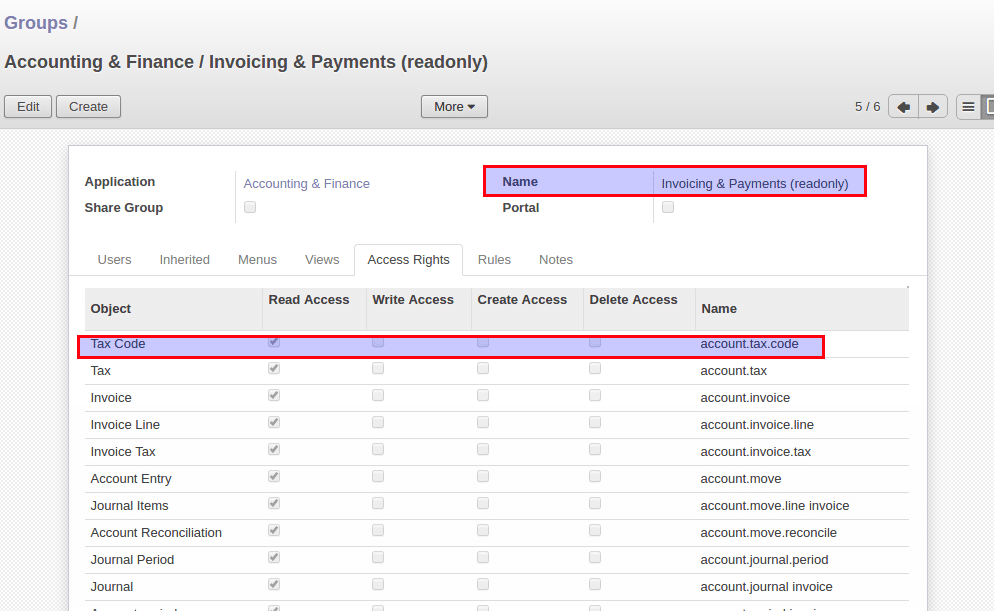
- For accounting access right search for group “Invoicing & Payment” with the application “Accounting & Finance”.
- Repeat the same step as in step 1.
In the same way, you can make a read-only user for your warehouse also in which the user can only see the stock available not able to modify the stock and create or edit any location, stock, lots etc.


 English (UK)
 English (United States)
 English (Ireland)
 English (India)